Add New Courses
Learn how to create new training courses in Training Manager Web Edition.
Overview
Adding new courses is the first step in building your training curriculum. This guide walks you through creating course records with proper titles and numbering.
Prerequisites
Before creating courses, ensure you have:
- Data Administrator or System Administrator permissions
- Access to the Course List page
- A plan for course organization and numbering
Step-by-Step Instructions
1. Access the New Course Function
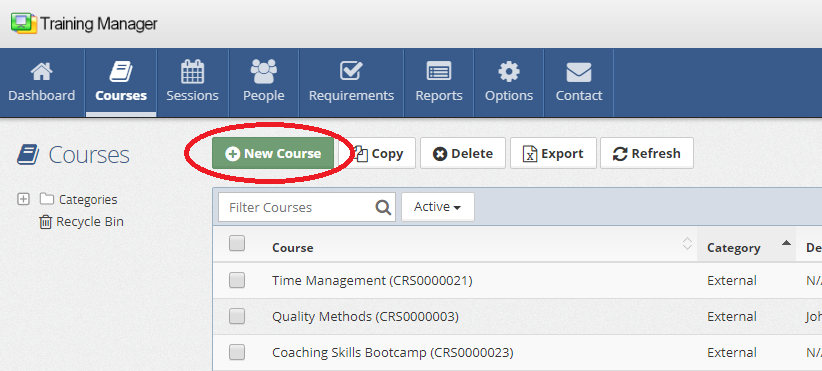
Click the "New Course" button, which can be found in two locations:
- Course List page - In the main toolbar above the course list
- Course Detail page - When viewing an existing course
2. Enter Course Information
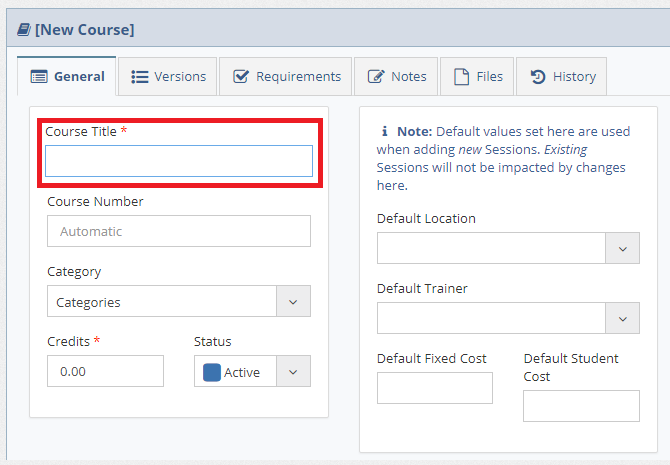
On the new course page, complete the required fields:
Course Title
- Enter a descriptive title for your course
- Use clear, concise language that explains the course content
- Follow your organization's naming conventions
Course Number (Optional)
You have two options for course numbering:
Automatic Numbering:
- Leave the "Course Number" field empty
- The system will automatically generate a unique course number
Manual Numbering:
- Enter a specific course number manually
- Ensure the number follows your organization's numbering scheme
- Verify the number isn't already in use
3. Complete Additional Fields
Fill in other optional fields as needed:
- Category - Course classification
- Credits - Number of credits awarded
- Default Location - Default value for the Location when adding a new training session
- Default Trainer - Default value for the Trainer when adding a new training session
4. Save the Course
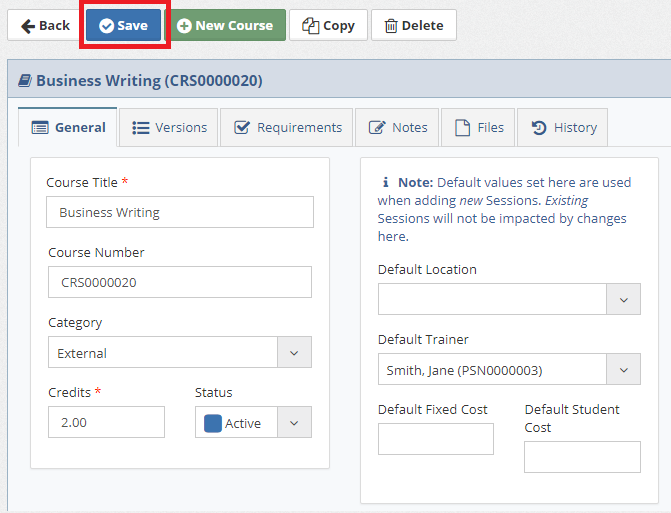
Click the "Save" button to create the course record.
Course Numbering Best Practices
Automatic vs. Manual Numbering
Use Automatic Numbering When:
- You don't have a specific numbering scheme
- You're creating many courses quickly
Use Manual Numbering When:
- You have an established numbering system
- You need specific number ranges for different course types
- You're migrating from another system
Numbering Scheme Examples
- Sequential: 001, 002, 003...
- Departmental: HR-001, IT-001, SAFE-001...
- Skill-based: LEAD-101, TECH-201, COMP-301...
After Creating a Course
Once your course is saved:
- Add Course Notes - Add comprehensive course information
- Create Course Versions - Establish version control if needed
- Link Requirements - Addtraining requirements
- Schedule Sessions - Plan training sessions
Troubleshooting
Common Issues
"Course Number Already Exists" Message:
- Choose a different number or let the system auto-generate
- Check if the course already exists in your system
"Access Denied" Message:
- Verify you have appropriate permissions
- Contact your system administrator
Save Button Not Working:
- Ensure all required fields are completed and you are logged in with an account that has permission to create courses
Next Steps
After creating your course:
- Edit the course to add detailed information
- Set up training sessions for the course
- Add related training requirements
Related Topics
- Edit Courses - Modify course information
- Training Sessions - Schedule course delivery
- Requirements - Link courses to compliance needs
Next: Learn how to edit existing courses to update their information.